Analog m-pod is different from other m-pod models: The other models typically have 8 or 16 physical output lines; a signal is indicated when the voltage on one of these lines alternates between 0 and 5 volts.
Analog m-pod has a single physical output line. The voltage level that it produces is determined by three options:
Analog m-pod offers two modes: Fixed Delta and Binary.
Fixed Delta mode is simpler: m-pod divides the voltage range by the number of levels. For example, with 8 levels and a 0 to 10 volts range, the output is:
The main advantage of Fixed Delta mode is that it makes data analysis easier. You have only 8 (or 16) evenly distributed voltage levels to interpret. The disadvantage is that bits cannot be combined: the output will always be that of the most significant bit; any lower bits are ignored. For example, if you send a command to Analog m-pod to activate bits 6 and 7 at the same time, the output will be 10V (bit 7).
Binary mode is more powerful but might make analyzing the data more difficult. With a 0 to 10 volts range, the output is:
The advantage of binary mode is that bits can be combined. You can have up to 256 different voltage levels. For example, if you send a command to Analog m-pod to activate bits 6 and 7 at the same time, the output will be 7.5V (2.5V + 5V).
Consider setting Analog m-pod to use “Single Pulse” mode instead of the default “Reflective” mode. This will reduce odds that two different signals will overlap.
If you want to use Binary mode, we recommend a couple of steps to reduce the total number of voltage levels, which would make data analysis easier:
If using Fixed Delta mode, we recommend that bits marking the onset of stimuli be lower than bits indicating a participant response. For example, if marking the onset of visual stimuli using a light sensor, it is better to have that indicated by Bit 0 instead of Bit 7. In a typical trial, stimuli are always presented first.
The factory default for Analog m-pod is to produce output only in response to commands sent via USB to StimTracker or the response pad.
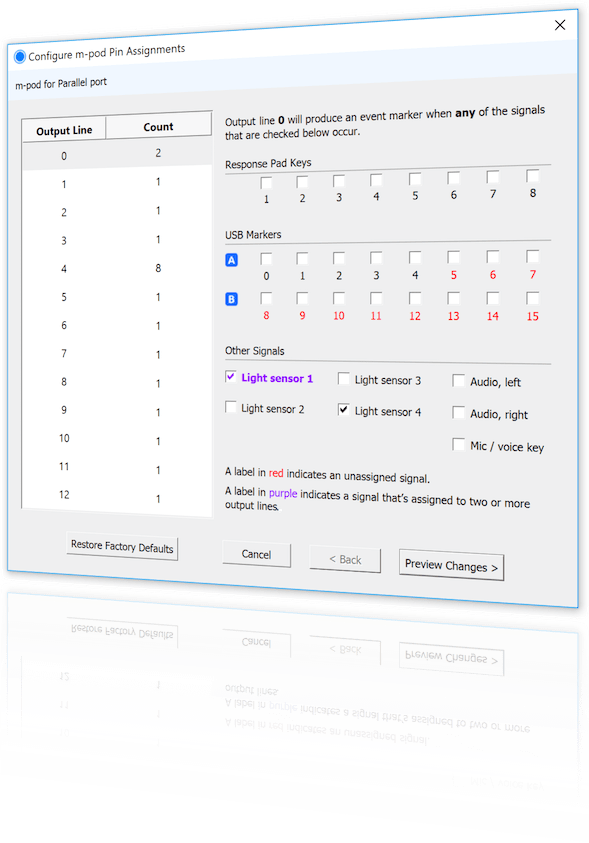
In order to produce other types of output, e.g. in response to onset of light sensor or audio, Cedrus provides a free utility for configuring your m-pod. After you use it, your configuration is saved to flash memory so that it’s remembered even after you power off m-pod.
Last Revision: Dec 8, 2022
PRODUCTS
SUPPORT
STAY IN TOUCH


© Copyright 2026 Cedrus Corporation, P.O. Box 6309, San Pedro, CA 90734 - USA
Phone: +1-310-548-9595. Send us an email
qwerasdf